I discovered a way to break Windows 10 and Windows 11.
Install Windows so you are signing in with an Azure Active Directory Account, and then change the Workgroup so it is the name of an existing WORKGROUP on your network (which, of course, is the only thing you might want to change it to). You will now find your computer will not boot. When Windows boots, the circling dots just continue to circle. Reports on the internet suggest that this continues forever (I’ve left it for multiple hours) or that it eventually stops.
The Windows repair function isn’t able to recover from this situation – and the only option is to reinstall Windows from the recovery disk. Ouch.
Or you can follow this relatively simple procedure to change the Workgroup and get your system booting again:
Power off the computer and restart it – let the dots spin for a few seconds and repeat until you get the Windows Recovery screen.

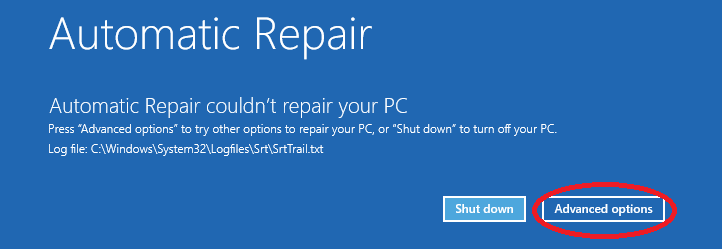
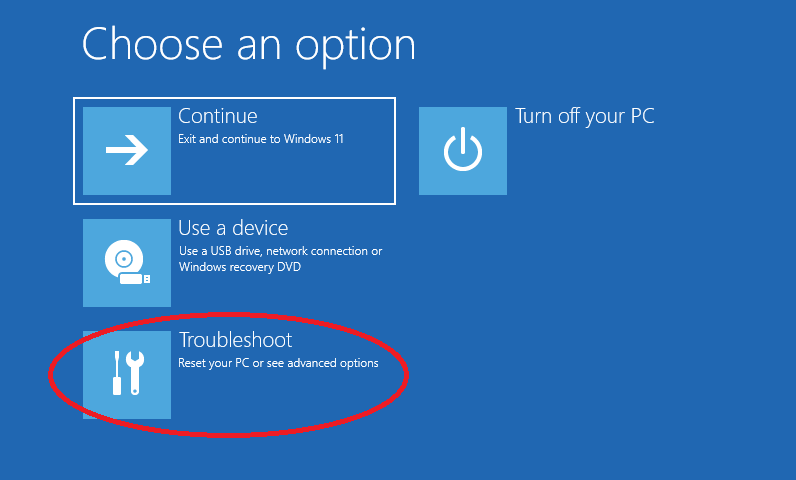
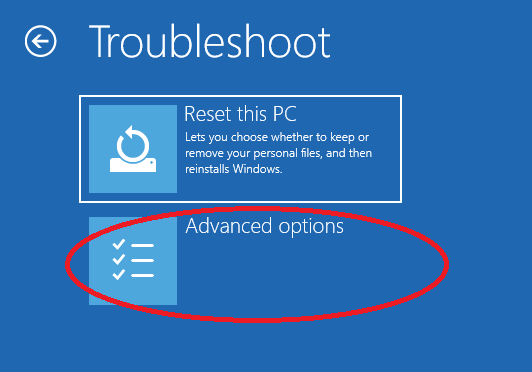
The select Advanced Options, then Troubleshoot, Advanced Options, Command Prompt.
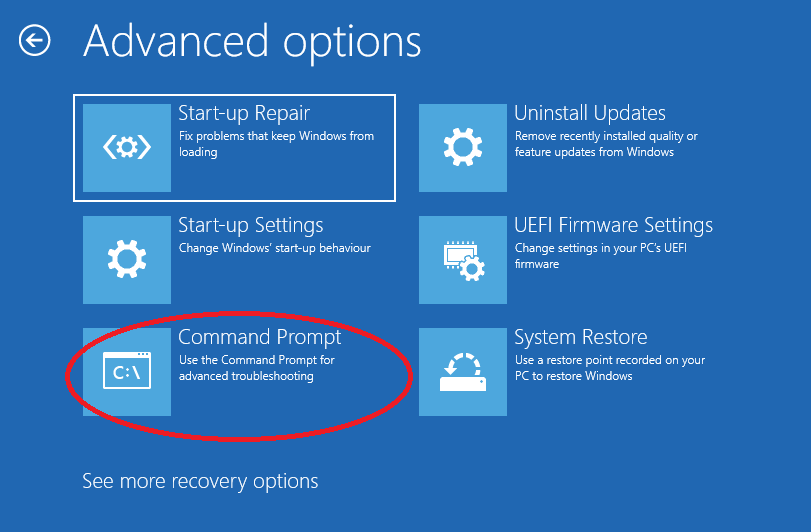
We need to change a registry entry, which we can do with a few tricks.
First, run regedit.
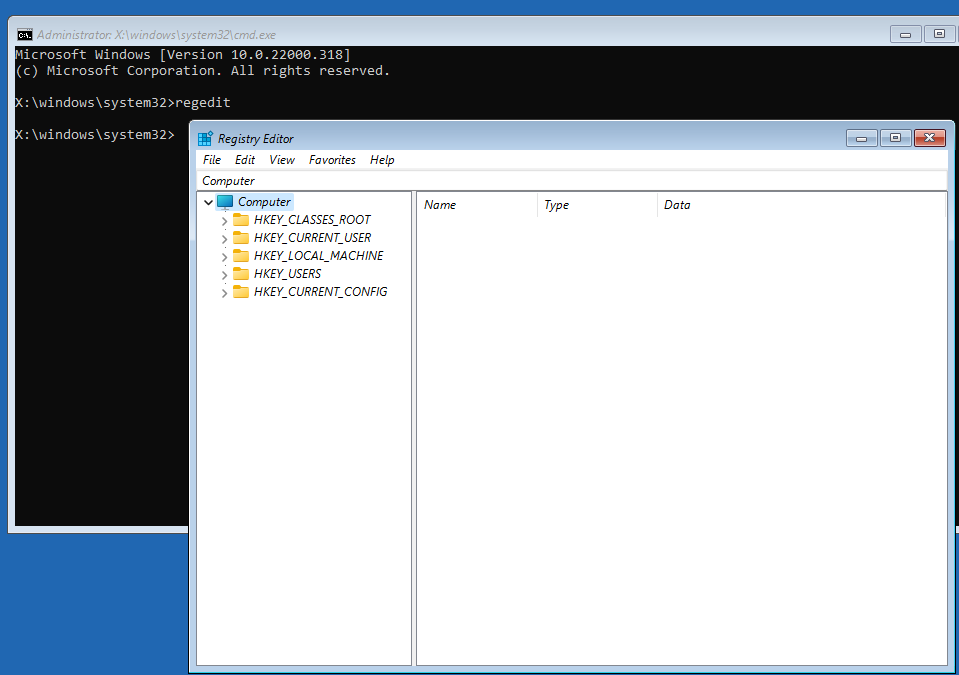
Then, select HKEY_LOCAL_MACHINE, and do File \ Load Hive… and load the hive C:\Windows\System32\config\SECURITY at KeyName ‘X’.
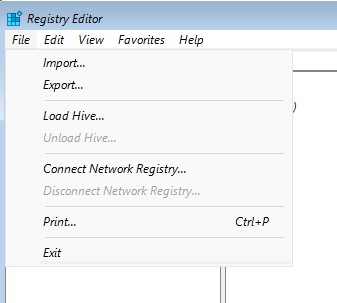
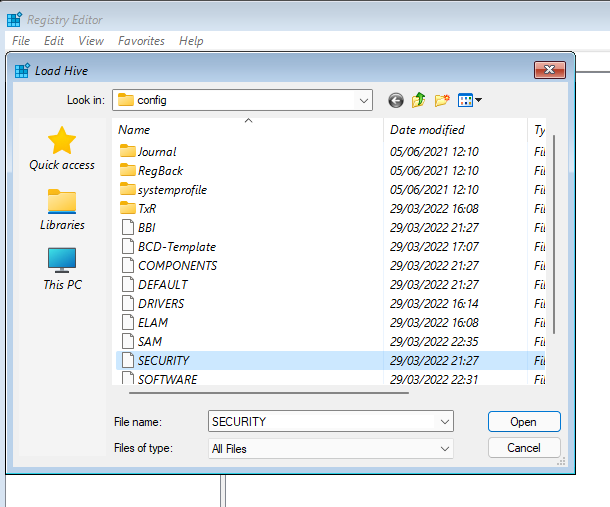
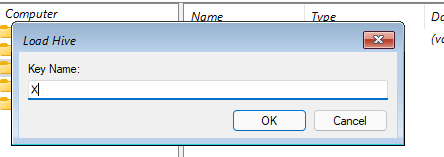
Navigate to the key HKEY_LOCAL_MACHINE\X\Policy\PolPrDmN and Export it to X:\WorkGroup
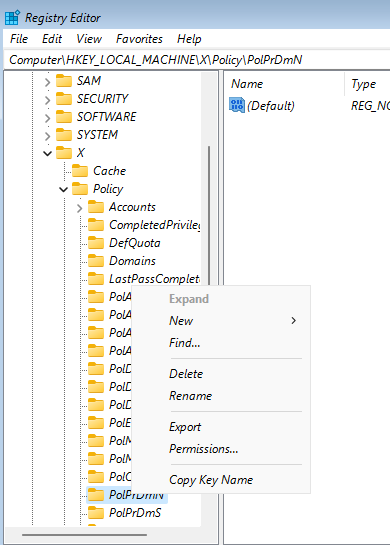
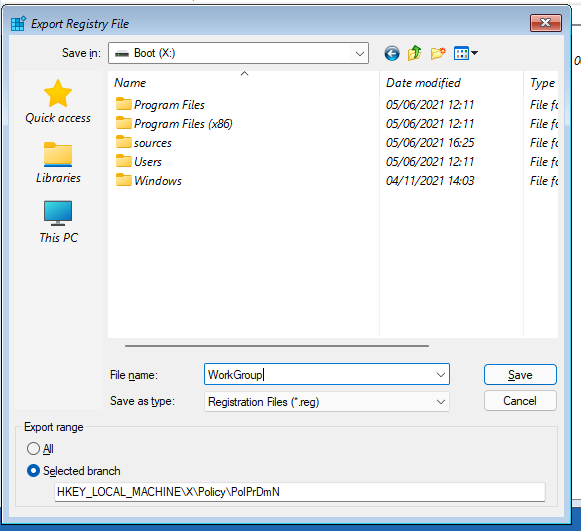
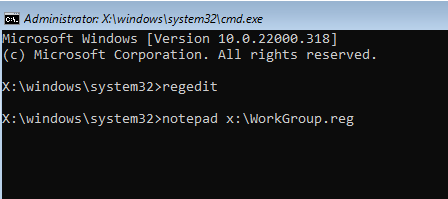
Then edit X:\WorkGroup.reg: in the Command Prompt, run notepad X:\Workgroup.reg
Change the key so the Workgroup has a different name.
The default name ‘WORKGROUP’ would have the setting:
@=hex(0): 12 00 14 00 08 00 00 00 57 00 4F 00 52 00 4B 00 47 00 52 00 4F 00 55 00 50 00 00 00
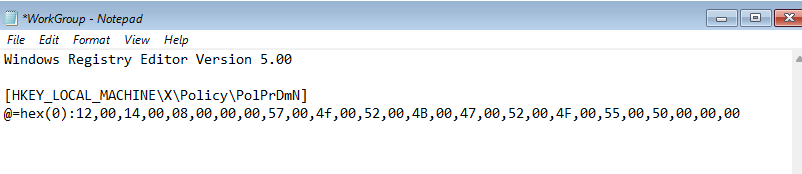
Close Notepad (and save the changes), then go back to RegEdit and import WorkGroup.reg
Close Regedit, Exit out of Command Line and reboot.
Leave a Reply